> For the complete documentation index, see [llms.txt](https://docs.valtimo.nl/llms.txt). Markdown versions of documentation pages are available by appending `.md` to page URLs; this page is available as [Markdown](https://docs.valtimo.nl/valtimo-docs-v3/features/iko/search-actions.md).
# Search actions
Configure search actions to define how users can search for customers or objects within a View.
## Overview
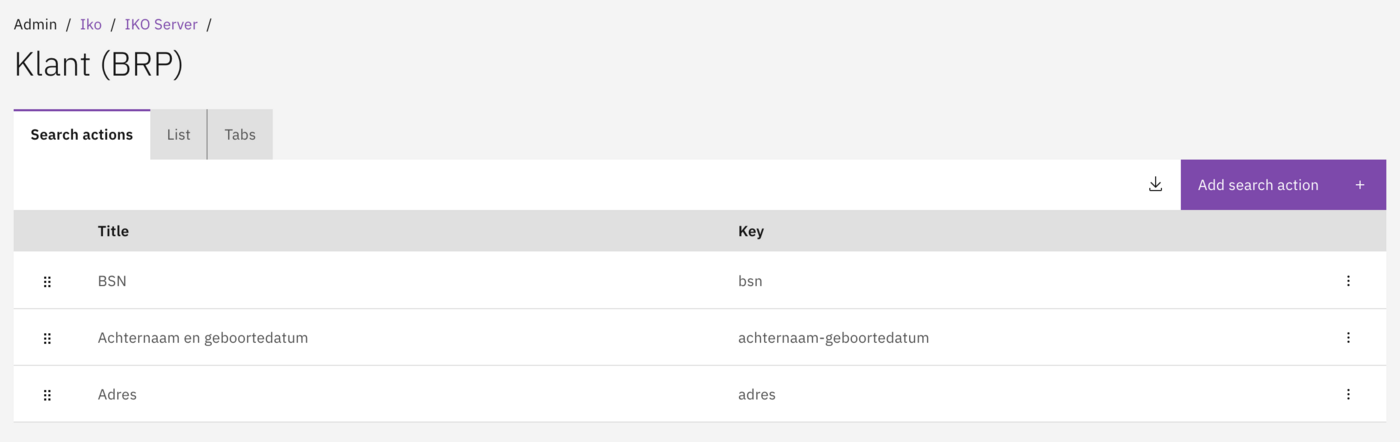
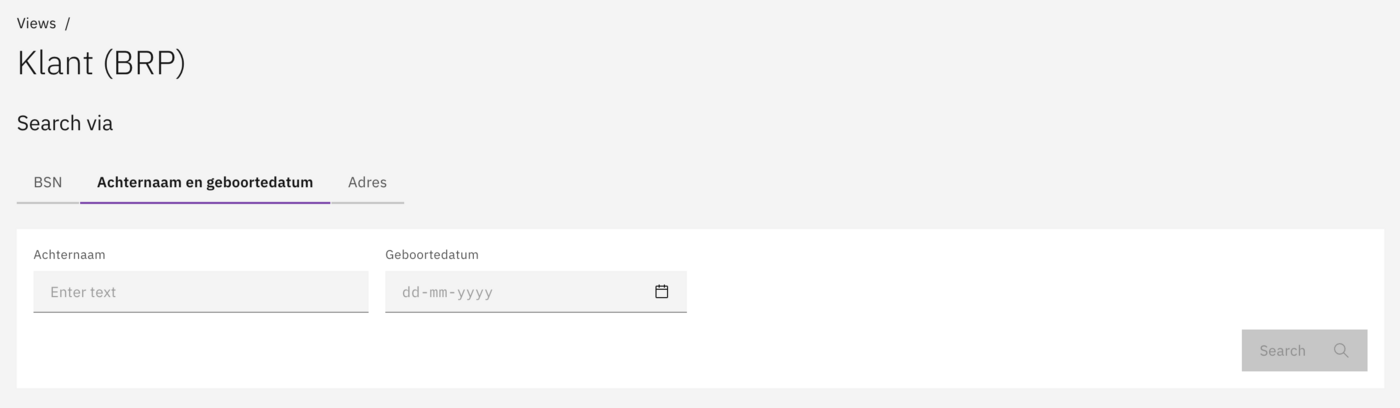
Search Actions define the available search methods for a View. Each Search Action appears as a separate tab in the search interface and connects to a specific endpoint on the IKO Server. This allows users to search using different criteria, such as BSN, name and date of birth, or address.
Each Search Action:
* Corresponds to a single IKO Server connector endpoint.
* Appears as a tab with its own search fields.
* Can send additional query parameters to the connector endpoint.
### Examples of search actions
* BSN (search by Burgerservicenummer).
* Surname and date of birth.
* Address.
* KVK number.
## Configuration
### Adding a search action
1. Navigate to **Admin → IKO**.
2. Select an IKO Server and View.
3. Go to the **Search Actions** section.
4. Click **Add Search Action**.
5. Configure the search action and its fields.
Search actions configured for a View.
### Configuring search fields
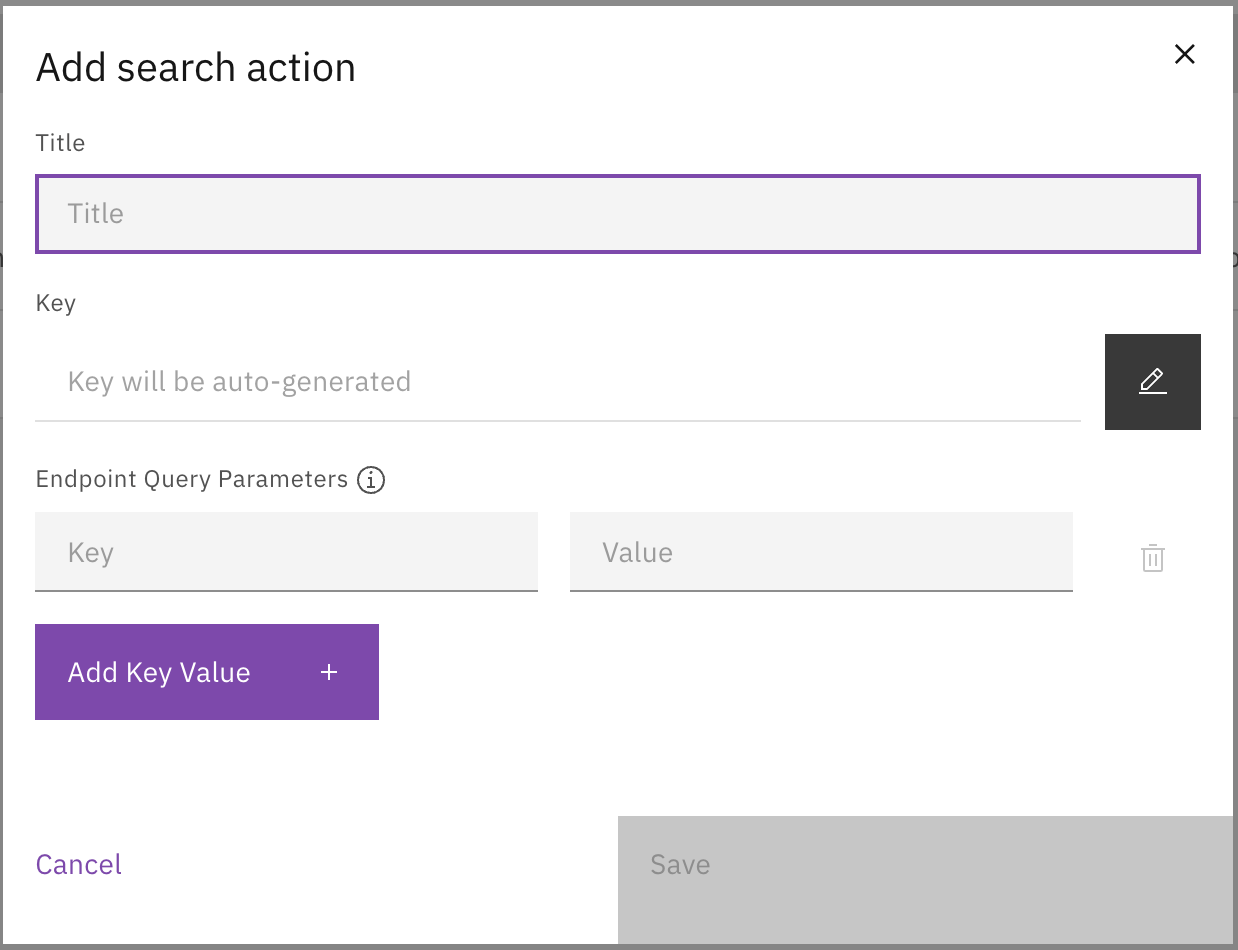
For each Search Action, one or more search fields are configured. When a user enters a value and searches, the field's path is sent as a query parameter to the connector endpoint.
| Field | Description |
| ---------- | ----------------------------------------------------------------------------------------- |
| Key | Technical key (e.g. `surname`). |
| Title | Display name (e.g. "Surname"). |
| Path | Query parameter name sent to the endpoint (e.g. `familyName` becomes `?familyName=Smit`). |
| Data type | Type of data (see table below). |
| Field type | Input type (see table below). |
| Required | Whether the field is mandatory. |
Configure search fields with data type, field type, and validation.
{% hint style="info" %}
The order of search fields can be adjusted via drag & drop.
{% endhint %}
The search screen as displayed to case workers.
## Data types
| Value | Description |
| ---------- | -------------------------------------- |
| `text` | Text input. |
| `number` | Numeric input. |
| `date` | Date (without time). |
| `datetime` | Date with time. |
| `time` | Time only. |
| `boolean` | Yes/No choice. |
| `bsn` | Burgerservicenummer (with validation). |
## Field types
| Value | Description |
| ------------------------ | --------------------------------- |
| `single` | Single input field. |
| `range` | Range (from-to). |
| `single-select-dropdown` | Dropdown with single selection. |
| `multi-select-dropdown` | Dropdown with multiple selection. |
## Match types
| Value | Description |
| ------- | ------------------------- |
| `exact` | Exact match. |
| `like` | Partial match (contains). |
## Related
* [Views](/valtimo-docs-v3/features/iko/views.md)
* [List](/valtimo-docs-v3/features/iko/list.md)