> For the complete documentation index, see [llms.txt](https://docs.valtimo.nl/llms.txt). Markdown versions of documentation pages are available by appending `.md` to page URLs; this page is available as [Markdown](https://docs.valtimo.nl/valtimo-docs-v3/features/case/statuses.md).
# Statuses
The *internal case status* is a case property that indicates the current internal state or status of a case. The term "internal" reflects that, by default, this status is not intended for communication with customers. Instead, it is used solely to track te progress of case handling.
This setting is particularly effective in environments that integrate case and process management. Storing an internal case status as metadata enables teams to establish specific internal statuses that case handlers can apply and track. Typically, case handlers work with a more extensive set of case statuses than those visible to customers or clients. This approach allows for refined tracking and management of case progression while maintaining a simplified view for external stakeholders.
Keep in mind statuses are shared across all versions of a case definition.
## Configuring case statuses
{% tabs %}
{% tab title="Via UI" %}
#### Adding a status
* Go to the `Admin` menu
* Go to the `Cases` menu and select the case
* Select the `Case details` tab
* Select the `Statuses` tab
A status can be added with the **Add status** button. A modal will be shown with the configuration options.
* **Name**\
*Used as a label in the case summary and case list, the name is presented in the UI.*
* **Key**\
*The identifier of the status, this must be a unique value within the scope of the case it is added to. A key based on the name is generated automatically.*
* **Color**\
*Statuses are are displayed as a badge in the case details and list screen UI.*\
*This badge will be displayed in the selected color.*\
\
**List of available status colors:**
* Red (`RED`)
* Magenta (`MAGENTA`)
* Purple (`PURPLE`)
* Blue (`BLUE`)
* Teal (`TEAL`)
* Green (`GREEN`)
* Cyan (`CYAN`)
* Gray (`GRAY`)
* Cool gray (`COOLGRAY`)
* Warm gray (`WARMGRAY`)
* High contrast (`HIGHCONTRAST`)
* Outline (`OUTLINE`)\\
* **Visible**\
Indication if cases in that status should be shown on the case list screen by default.
{% hint style="info" %}
**Statuses are automatically added to the case search filters**
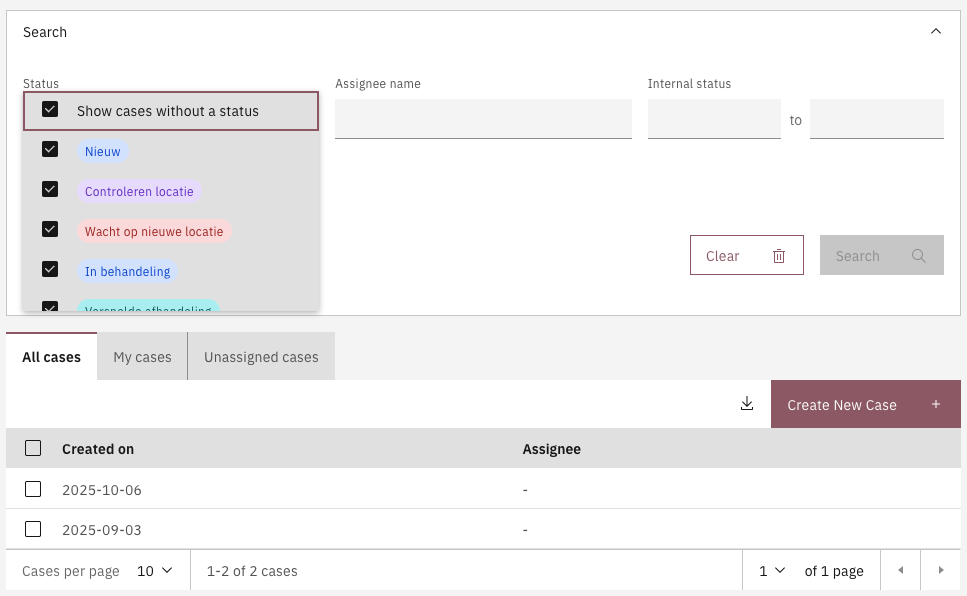
When statuses are configured for a case an additional search filter will be added to default search of the case list screen. This search filter enables to hide cases on the case list by default based on the status of the case.\
\
When the visible indicator for a status is set to false then cases that are currently in that status will not be displayed by default on the case list. Via the search filter options on the case list screen these statuses can be enabled to view all cases.
{% endhint %}
{% endtab %}
{% tab title="Via IDE" %}
Create an internal case status file under the following path: `*/resources/config/case/{case-definition-key}/{version-tag}/case/internal-status/`. The name of the file has to end with `.internal-case-status.json`.
{% code title="example-case.internal-case-status.json" %}
```
```
{% endcode %}
```json
[
{
"key" : "awaiting-processing",
"title" : "Awaiting processing",
"visibleInCaseListByDefault" : true,
"color" : "BLUE"
},
{
"key" : "processing-order",
"title" : "Processing order",
"visibleInCaseListByDefault" : true,
"color" : "PURPLE"
},
{
"key" : "shipped",
"title" : "Shipped",
"visibleInCaseListByDefault" : true,
"color" : "GREEN"
}
]
```
{% endtab %}
{% endtabs %}
## Ordering and sorting
Statuses can be ordered, which will be used for the following:
* Order of statuses in the status configuration screen
* Order of statuses in the status filter dropdown within the search filters
When a case list column is configured to display the case status, this status column can be further configured to be sortable.
## Using statuses
When statuses are configured for a case, an additional search filter is automatically applied to the Search Filters UI. This filter enables users to display or hide cases based on their configured status. The **Visible** configuration setting for each status controls whether a particular status is enabled by default in the search filter when the case list page is accessed.
This functionality allows users to customize the visibility of cases in the case list, ensuring that case handlers can focus on the most relevant cases upon initial view.
### Setting a case status
To enable the ability to set statuses at certain phases in the process, an expression can be added to any element in the process model where the case status should change. The following expression is available for setting a case status via the documentDelegateService:\
\
`${documentDelegateService.setInternalStatus(execution, 'new')}`
Next to setting a status via the process model it is also possible to set the case status via Form.io forms that are connected to user tasks in the process. The Form.io submission data will then submit the new status in stead of the process.\
\
In order to change the case status via Form.io the `case:internalStatus` targetKey can be used on a hidden form field to add the status change to the form submission. Due to the `case:` prefix the data is registered as meta data in stead of case data.
## Import and export
Case status configuration is included in the Case definition export and import by default. The export structure and format of the case statuses is exactly the same as described in [configuring statuses via IDE](#via-ide).
%20(1).png?alt=media)
.png?alt=media)