🧱Building blocks
Building blocks let you package a reusable subprocess with its own data model and version it separately from cases. This allows them to use their own data and configuration. You can use the same building block in multiple case definitions, independent processes, and across environments, while keeping a clear input and output contract.
When to use building blocks
Building blocks are useful when:
The same subprocess is needed in multiple cases.
You want one place to update a shared step.
You want a consistent way to pass data in and get results back.
Example: A "Household verification" building block can be used in both subsidy and permit cases. Each case passes in the citizen data, the building block runs the checks, and the outcome is synced back to the case.
How building blocks work
Create a building block definition (name, version, description).
Define the data it needs and the data it produces.
Add the processes and choose the main process.
Link the building block to a Call activity in a case process.
Map inputs and outputs, and choose when outputs are synced.
Building blocks are isolated by design. They should not directly read or write case data. Instead, you define the inputs and outputs when you link them to a case.
Create a building block
1. Create the definition
Go to Admin in the left sidebar.
Select Building blocks.
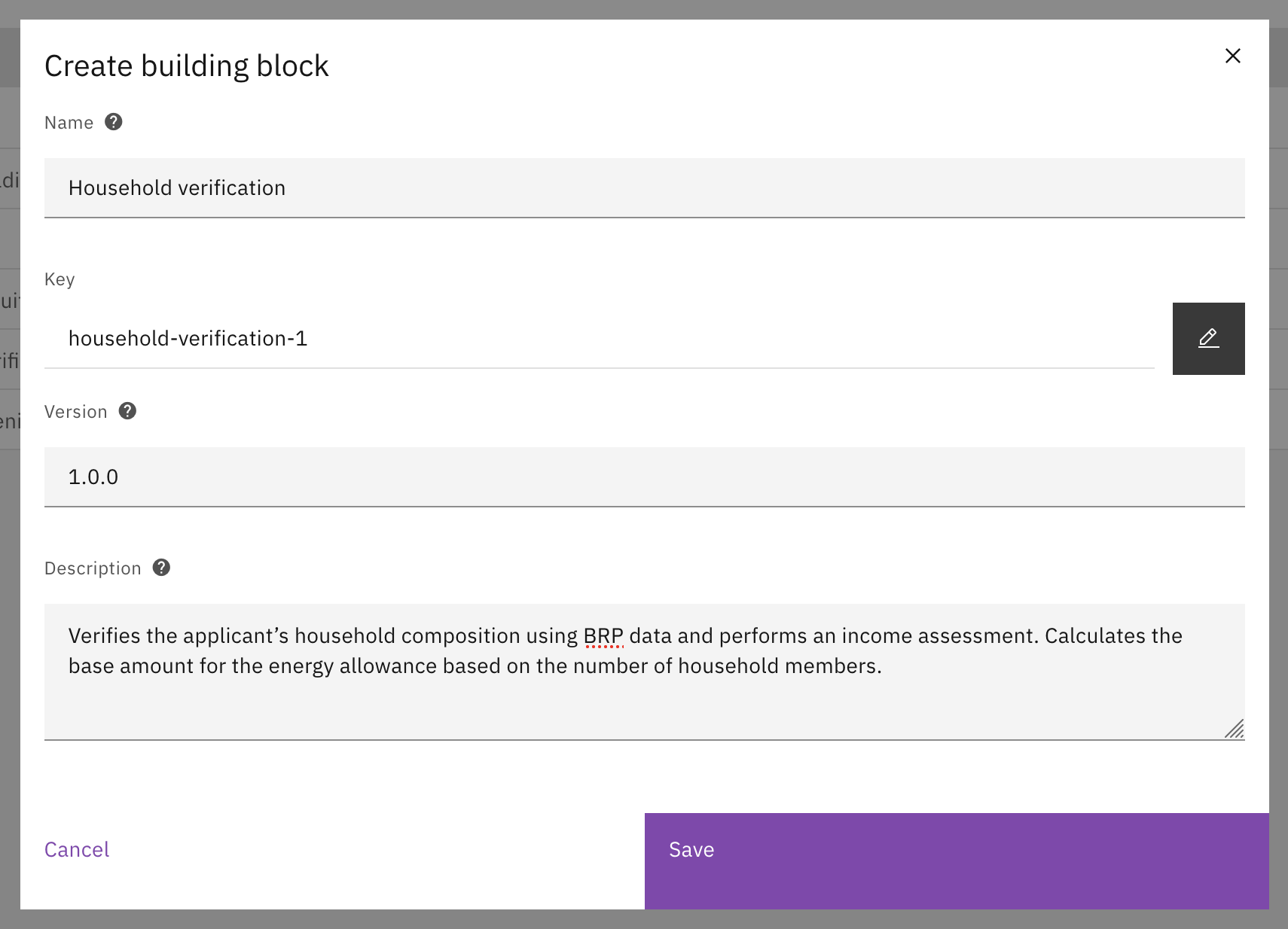
Click Create.
Enter a Name, Version, and (optional) Description.
Click Save.

2. Add general information
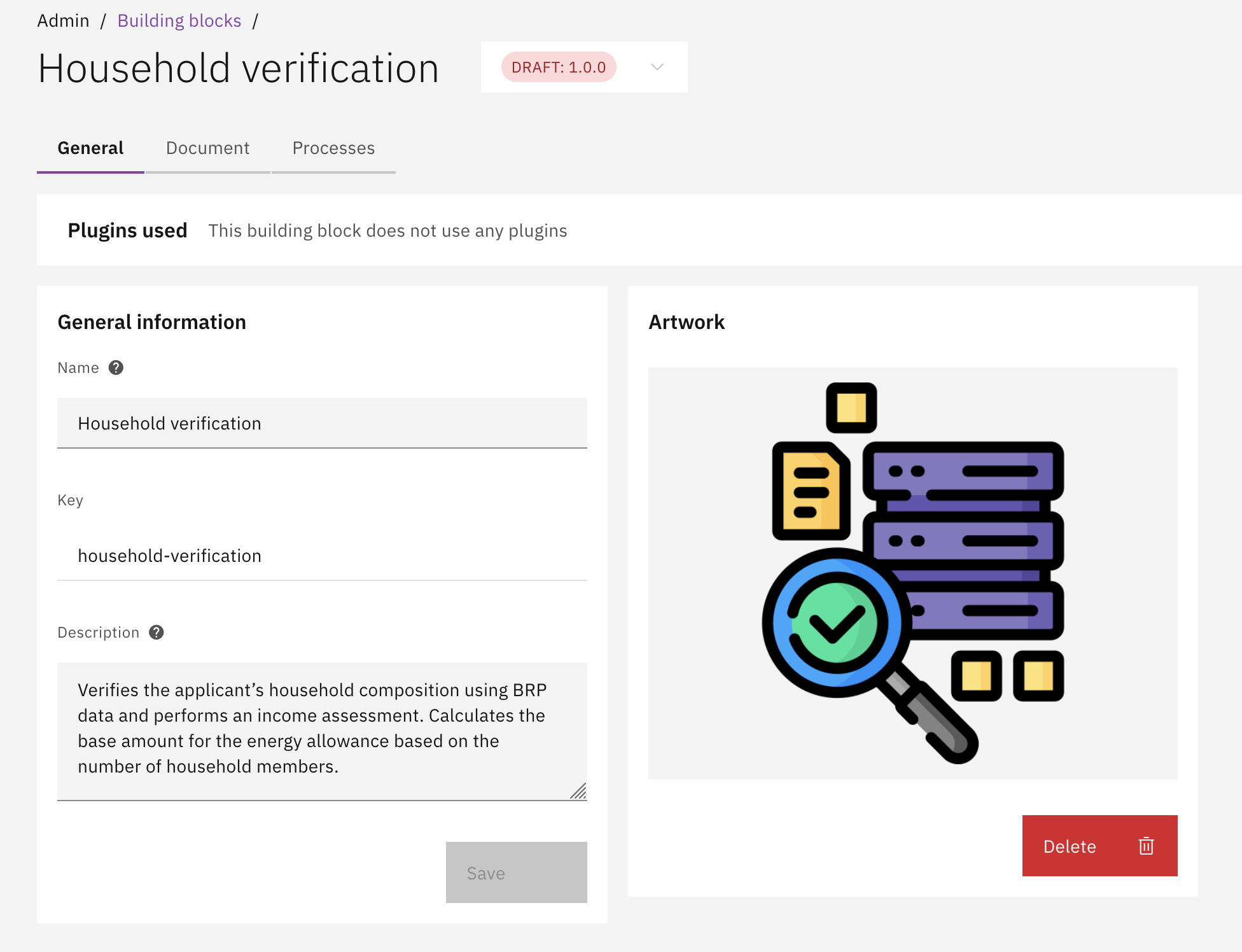
Open the General tab.
Optionally upload Artwork.
Review the list of Plugins used so you know which plugin types must be configured later. Initially, the list will be empty. This will be updated as you add plugins or other building blocks to the processes of your building block.

3. Define the data fields
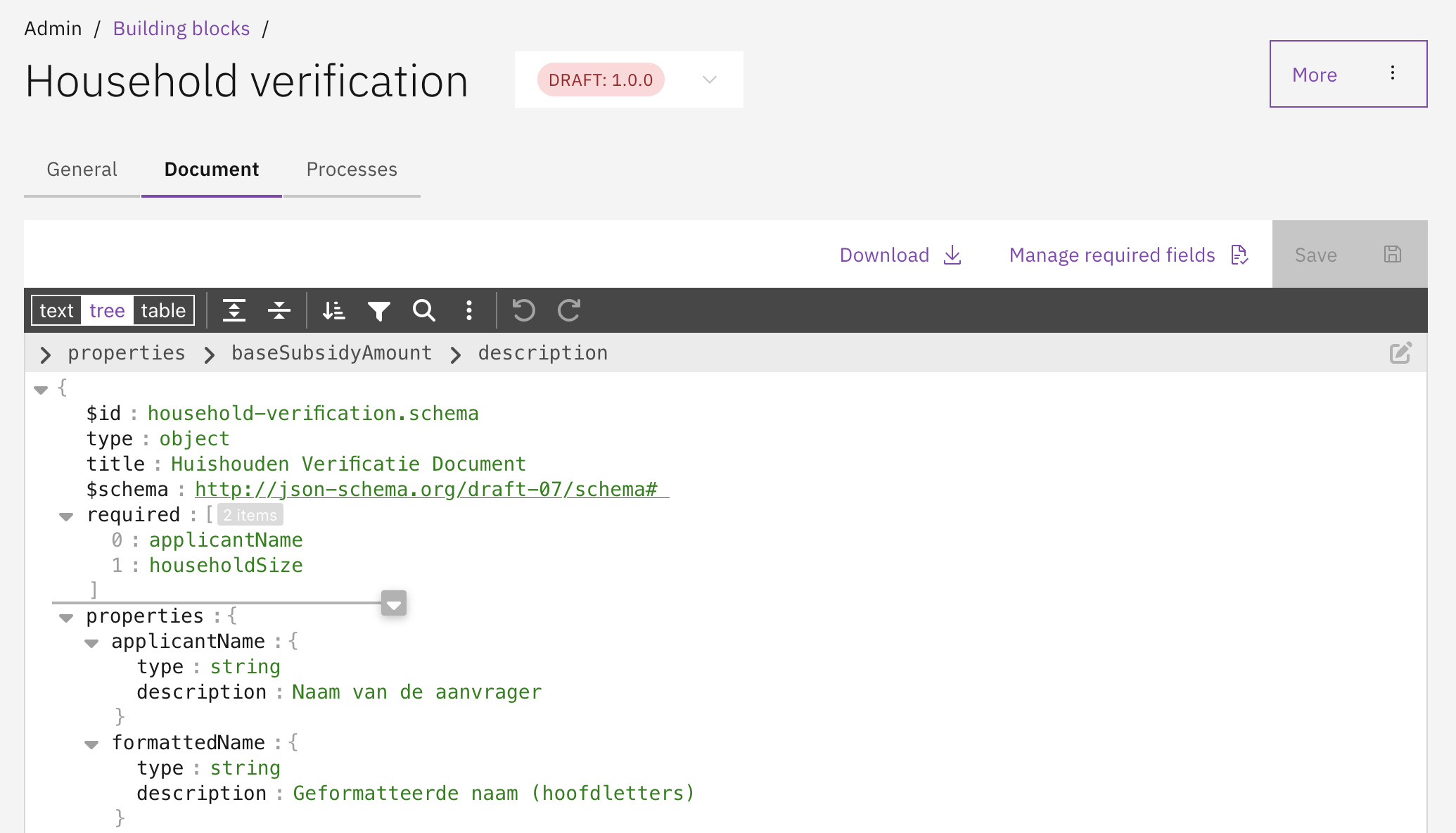
Open the Document tab.
Add the fields the building block needs (inputs) and may return (outputs) and any other data the building block will need to use internally.
Mark required fields so the case must provide them when using the building block.
Click Save.

4. Add processes
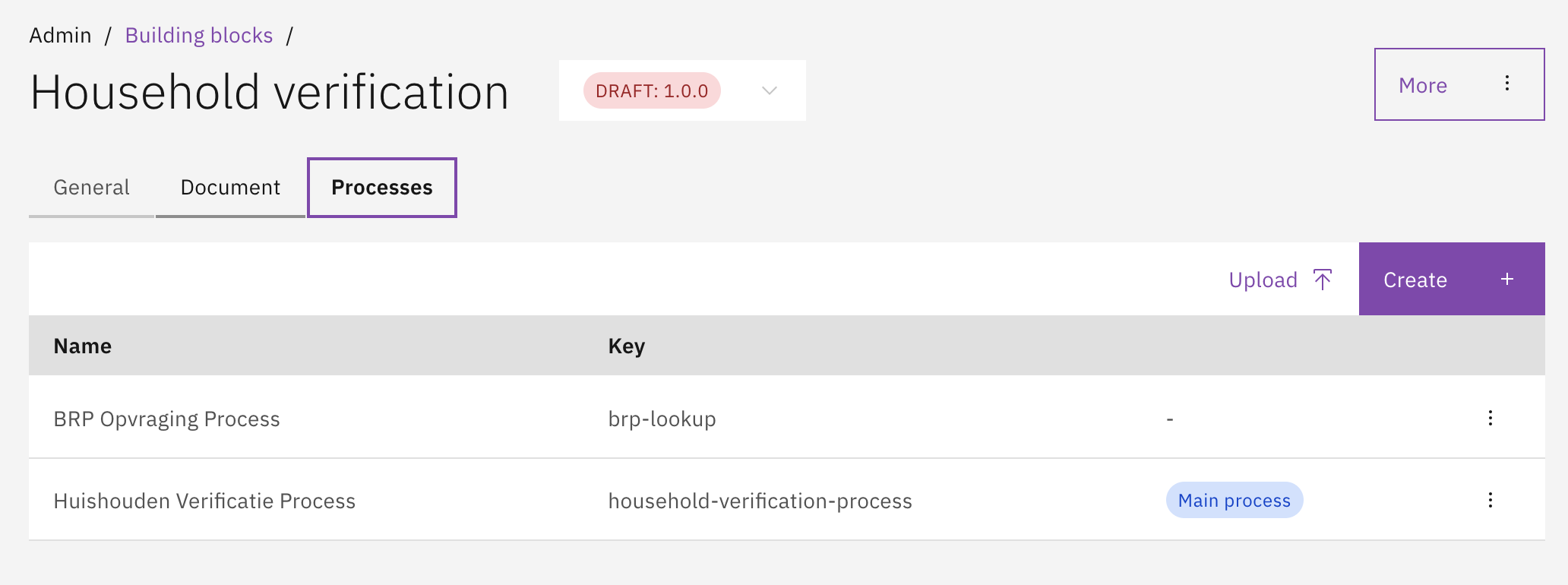
Open the Processes tab.
Either Upload a BPMN file or Create a new process.
Select which process should be the Main process for the building block, or use the process that has been created with the building block.
You can use plugins in these processes just like in case processes, but you select the plugin type instead of a specific configuration.

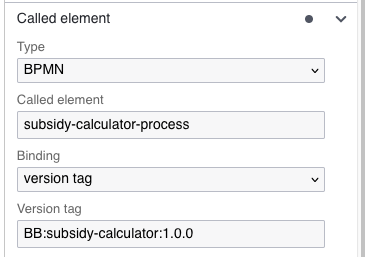
When a building block has multiple processes, you can create call activities from one process to another. Set the process definition key and include a reference to the current building block in the Version tag field. The version tag has the format
BB:<building-block-key>:<building-block-version>.

5. Finalize the version
Building blocks use draft and final versions, similar to case definitions.
Before you finalize, test the building block thoroughly. Final versions cannot be changed.
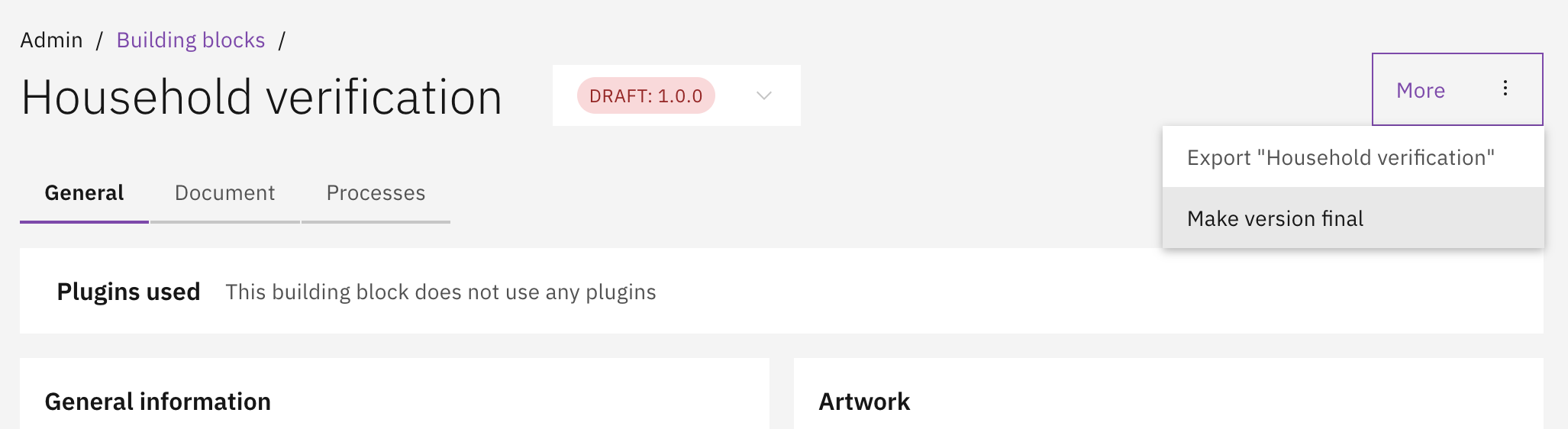
In the More menu, choose Make version final to lock the version.
To make changes later, create a new draft from a final version.
Only final building blocks can be used when finalizing a case definition.

Use a building block in a case
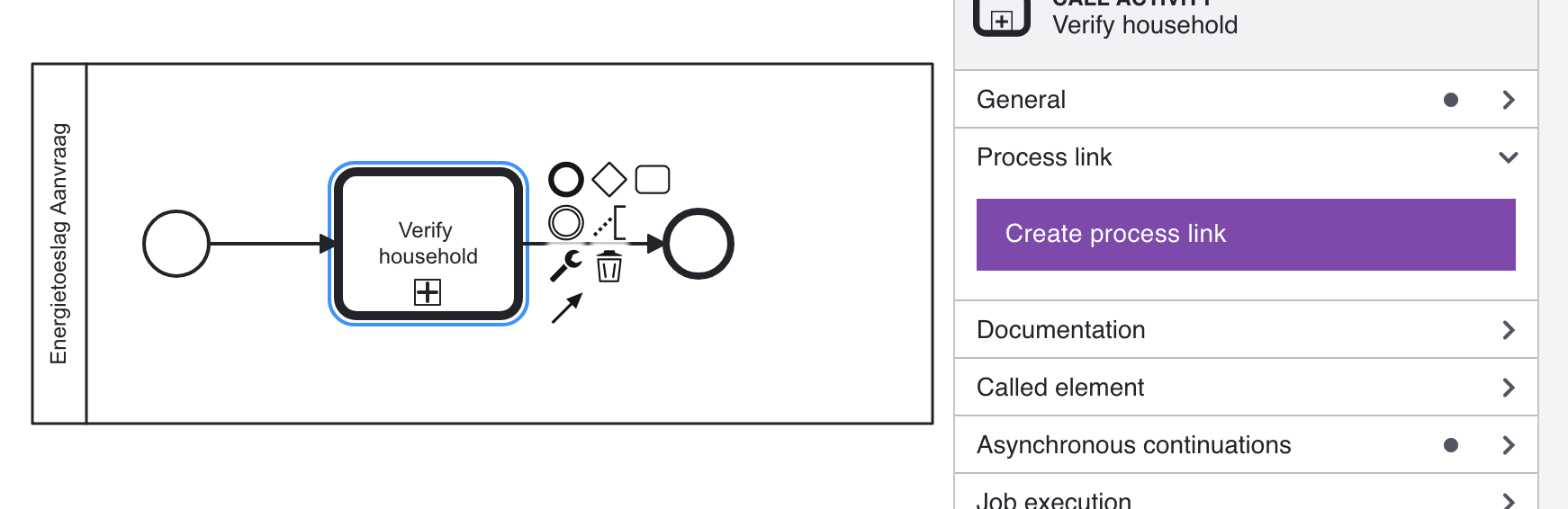
1. Add a Call activity
Open the case process where you want to use the building block.
Add a Call activity to the process model.

2. Link the building block
Open the Process link for the Call activity.
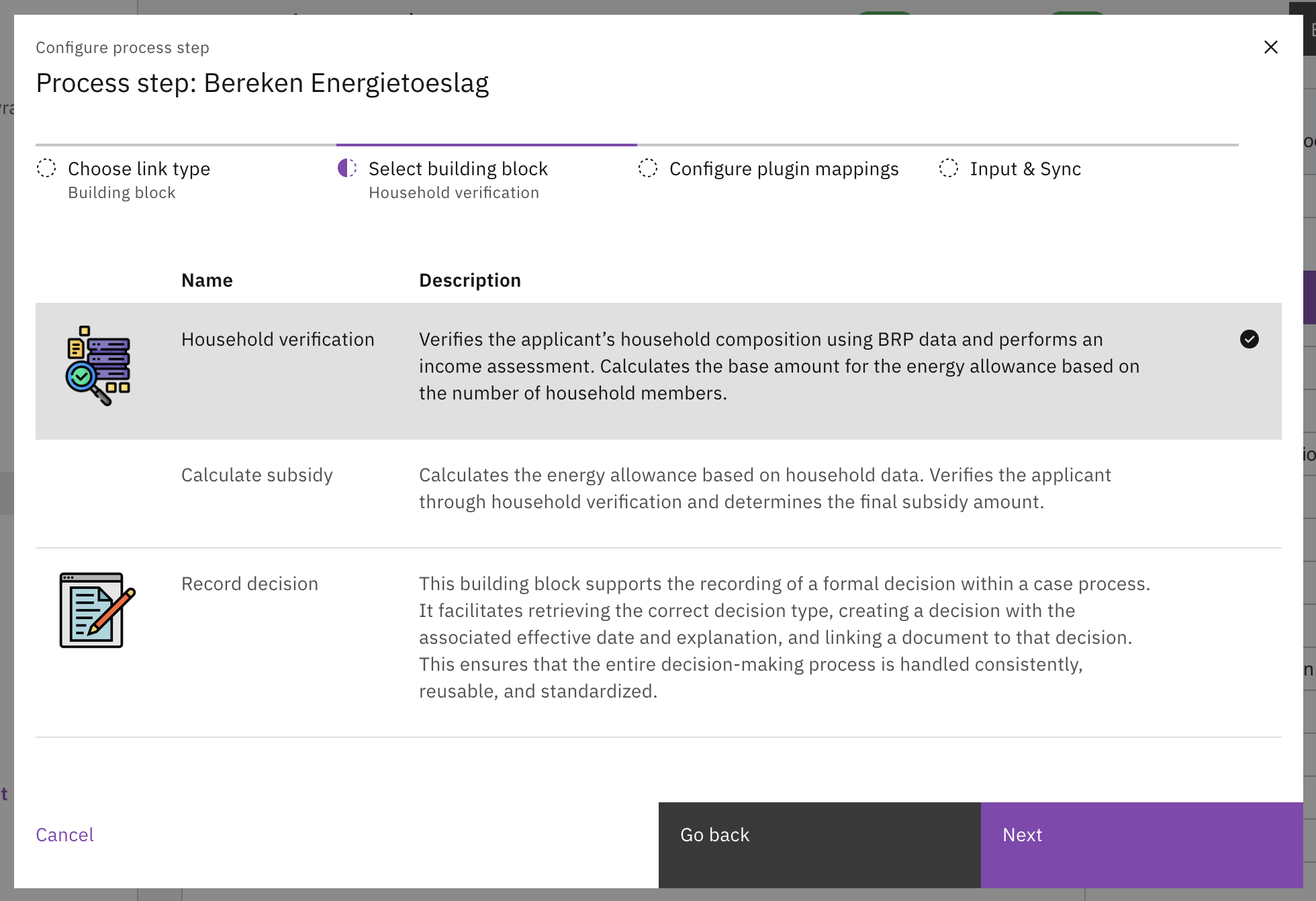
Choose Building block as the link type.
Choose the Building block you want to use.

3. Configure plugin mappings
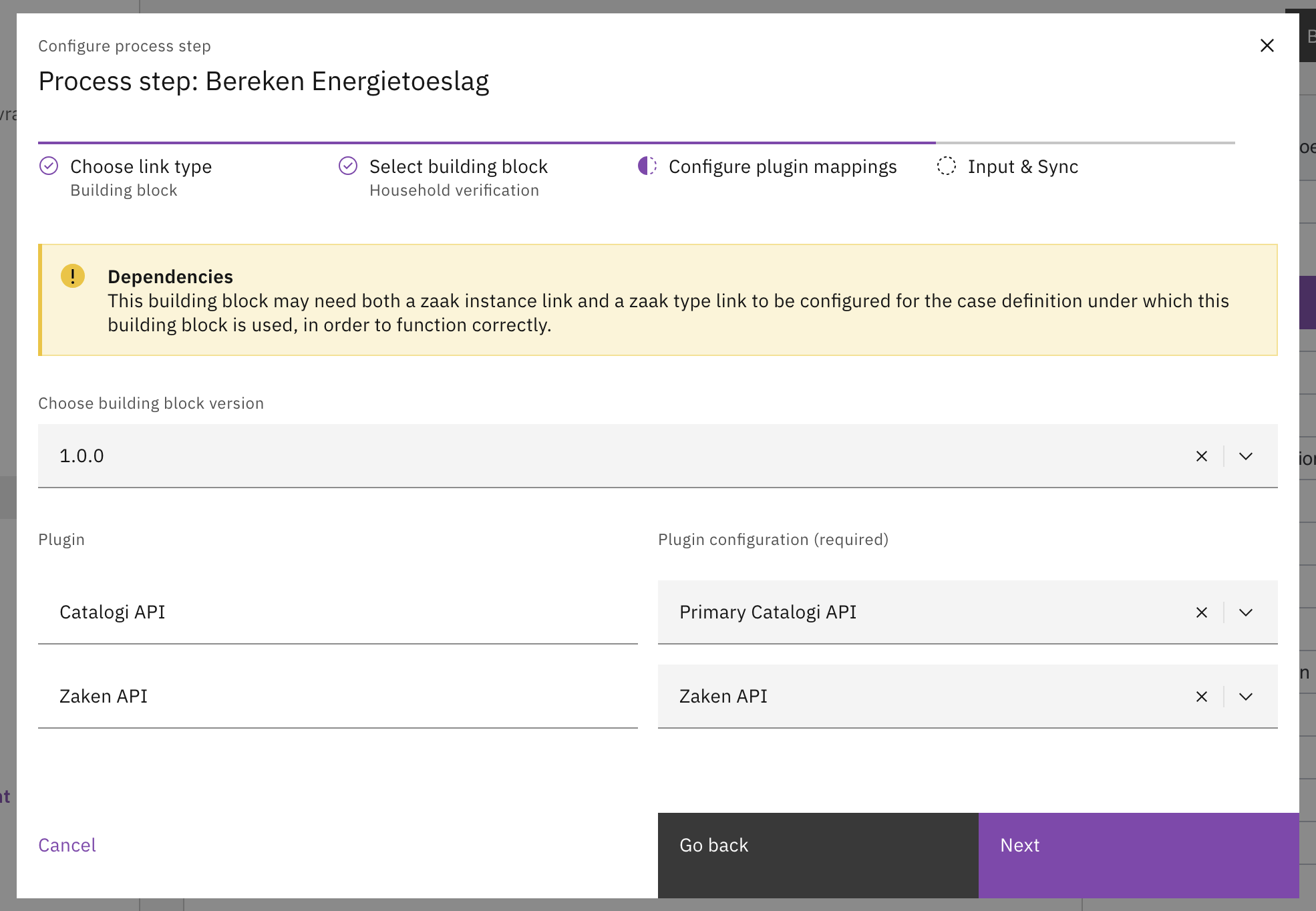
Select the building block Version you want to use.
If this version uses plugins, you must map each plugin type to a plugin configuration that already exists in your environment.
Select the saved plugin configuration for each plugin type.
If you are unsure, check the plugin documentation under Plugins.

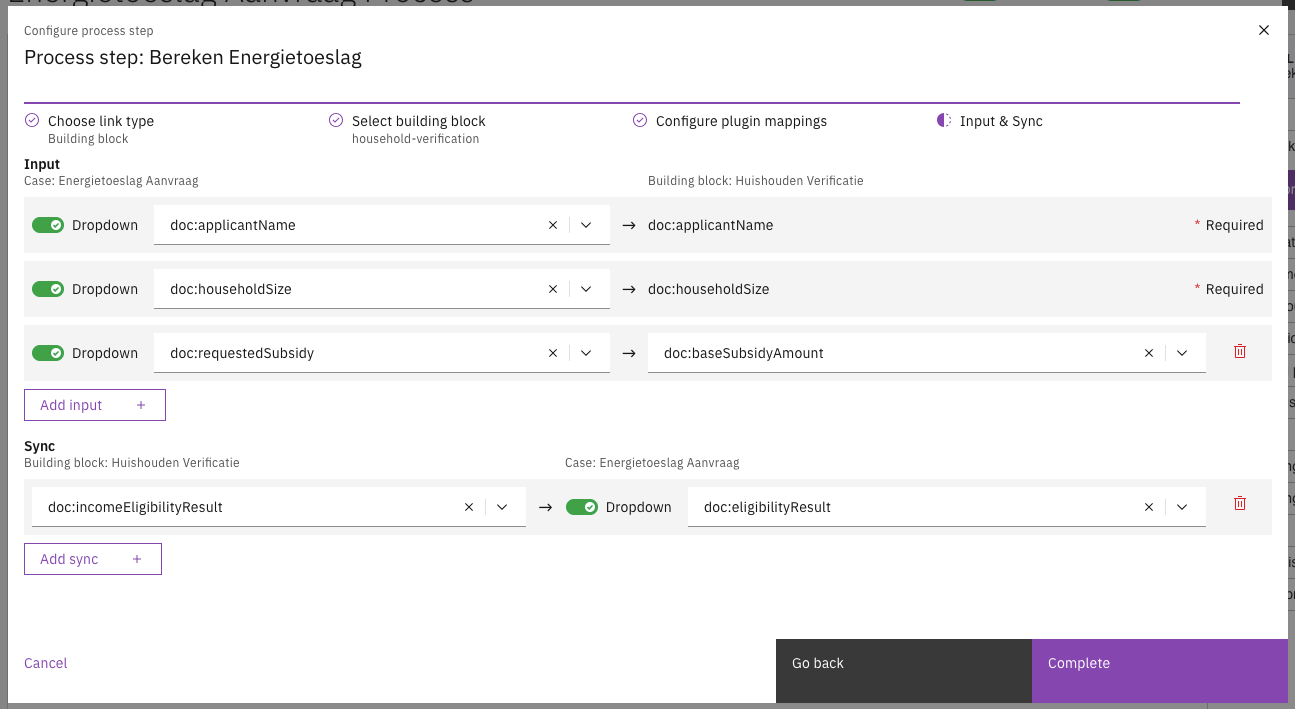
4. Map inputs and sync outputs
Map Inputs from the case data to the building block fields.
The required inputs for the building block will be listed by default.
Any optional inputs can be added manually by clicking Add input.
Map Outputs from the building block back to the case.
Fields can be added for syncing by clicking Add sync
This is one way. Any changes to the case document will not be automatically synced to the building block instance.
For each output mapping you can choose when the value is written back:
End (default) — the value is written back once, when the building block completes. This is the existing behaviour.
Continuous — the value is written back on every saved change to the building block data, while the building block is still running.
The sync-timing choice applies the same way to building blocks started ad-hoc as a case action and to building blocks used in independent processes (where outputs are written to process variables using the
pv:prefix).

5. Save and deploy
Click Complete to save the process link.
Save and deploy the updated case process.
Use a building block in an independent process
Building blocks can also be used in independent processes that are not associated with a case or a building block. The setup is the same as described above, except for input and output mappings.
Independent processes use process variables instead of document fields for data exchange with building blocks. Use the pv: prefix to indicate a process variable in your mappings.
Inputs:
pv:customerNamemaps the process variablecustomerNameto a building block input field.Outputs: A building block output field mapped to
pv:resultwrites the value to the process variableresult.
Start a building block ad-hoc from a case
A building block that is linked directly to a case definition (see Linking building blocks to a case) can be started ad-hoc from the case detail page, without being triggered by a call activity in a case process.
Open a case that uses the case definition.
Click the Start button.
Select the building block from the list of available actions.
Fill in the building block's start form and confirm.
A new building block instance is created and linked to the case. The instance runs its main process, and any fields declared in the link's outputMappings are written back to the case document when the configured syncTiming fires (by default at the end of the instance).
Running and completed building block instances are shown in the case's progress overview alongside the case processes.
Send a message to a case
A message sent with the correlationService methods below reaches every running process of a case: the case's own processes and all of its building blocks, including nested ones. Use it to let a building block react to something that happens elsewhere in the case, or to let building blocks signal each other.
A regular message correlation is matched on a single business key, and a building block runs under its own document id — so a message aimed at the case business key never arrives at its building blocks. See correlating messages for the other correlation methods.
Deliver to a waiting message catch event
Model an intermediate throw event (or any service task) in a case process, an ad-hoc process or a building block process, and use the expression:
The case is derived from the sending process. This also works from within a building block, so a building block can message its sibling building blocks and the case processes.
Variables can be passed as alternating name/value pairs, or as a map:
To message a different case — a related case, for example — pass its document id instead of the execution:
The value has to be a document id. A building block document id is accepted too and is resolved to the case that owns it.
Start a building block by message
A building block whose main process starts with a message start event can be started for a case:
Every building block that is linked to the case definition (see Linking building blocks to a case) and whose main process declares a message start event with that name is started, in the version the link pins. The new instance is bootstrapped exactly like an ad-hoc start: it gets its own document, the link's inputMappings are applied, and its outputMappings are synced back to the case when the configured syncTiming fires.
Modelling guidance
Use a distinct message name per intent. Delivery is a fan-out: every subscribed process instance of the case receives the message. Do not reuse a name across unrelated flows, and do not use the same name for a catch event and a start event.
Start building blocks with
sendStartMessageToCase, not with a plain message start correlation. A plain start correlation always picks the latest deployed version of a process, while a case is linked to a specific building block version — it would run the wrong version.Nothing listening is not an error. When no process of the case is waiting for the message, nothing happens: a warning is logged and the sending process simply continues.
Import and export building blocks
Building blocks are automatically included in case definition exports. You can also export or import a building block separately when you want to move or reuse it on its own.
Import
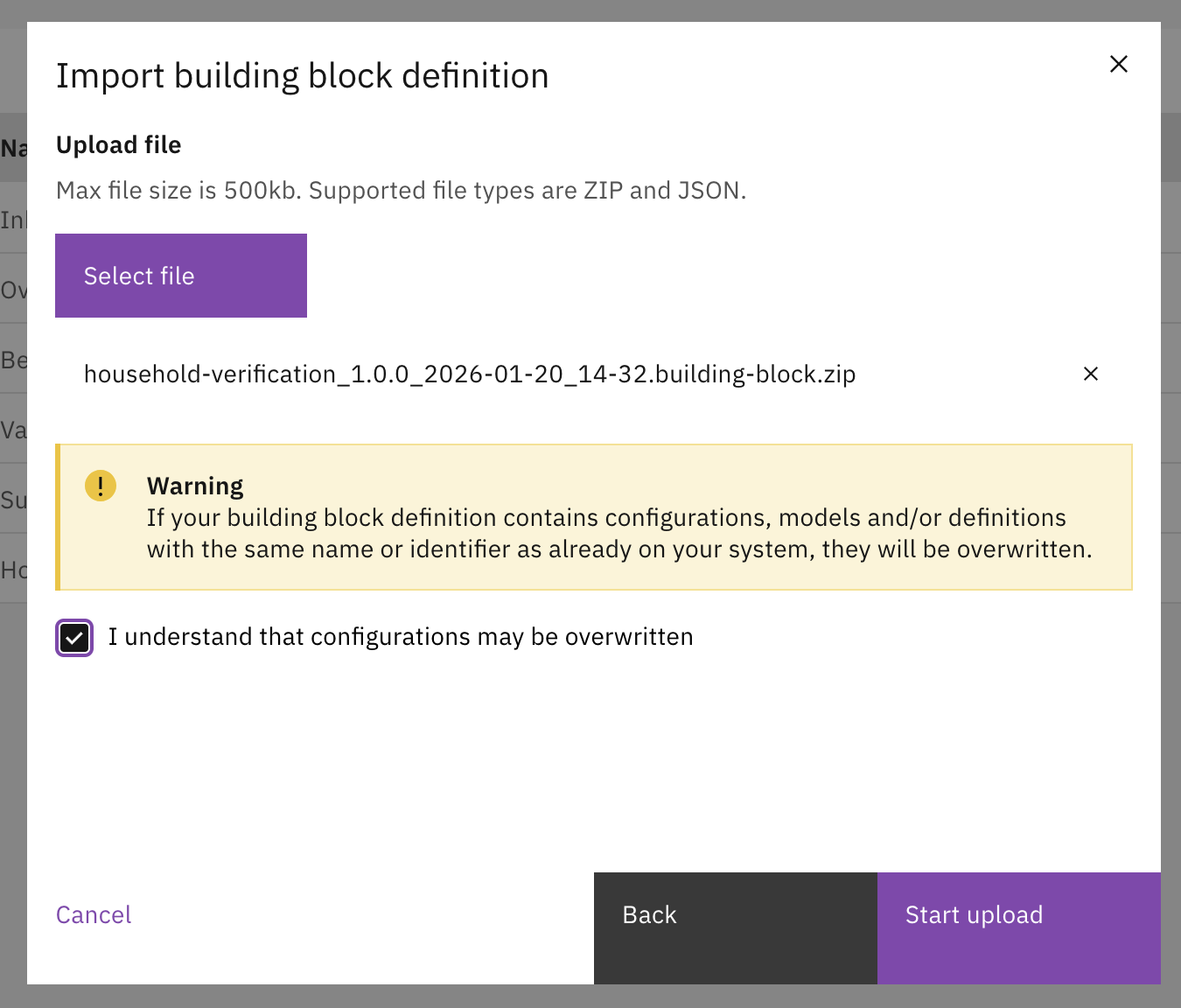
Go to Admin → Building blocks.
Click Upload.
Select a
.zipor.jsonexport file and confirm the overwrite warning.Follow the steps in the wizard.

Export
Open a building block.
Click More → Export.
Auto-deployment
Building blocks can be configured via auto-deployment files in the application resources. These files are loaded at application startup.
Building block definition
The building block definition and its related files are placed under:
Building block definition file
<key>.building-block-definition.json defines the building block metadata:
Main process definition
building-block-definition-main-process-definition.json sets the main process for the building block:
Start form
Building blocks that are started ad-hoc (not from a call activity in a case process) require a start form. This is a Form.io form linked to the StartEvent of the building block's main process via a process link.
Create a Form.io form definition in the building block's
form/directory (e.g.start-form-income-check.form.json).Add a process link entry in the building block's
process-link/<process-key>.process-link.jsonthat links theStartEventto the form:
The formDefinitionName must match the name of the form file (without the .form.json suffix).
Linking building blocks to a case
To link building blocks to a case definition via auto-deployment, create a file with the naming pattern <name>.case-building-block-links.json in the case's building-block-link/ directory:
This file contains an array of building block links, each specifying the building block to use, plugin configuration mappings, and input/output data mappings:
buildingBlockDefinitionKey
The key of the building block definition to link.
buildingBlockDefinitionVersionTag
The version of the building block to use.
pluginConfigurationMappings
Maps plugin definition keys used in the building block to specific plugin configuration IDs in the environment.
inputMappings
Maps case document fields (source) to building block document fields (target). Uses doc:/ prefix for document paths.
outputMappings
Maps building block document fields (source) back to case document fields (target). Uses doc:/ prefix for document paths.
When building block links are imported, all existing links for the case definition are replaced with the links from the file. Make sure the file contains all desired building block links for the case.
Building block process links
Building block processes support the same process link types as case processes. The process link file is placed at config/building-block/<key>/<version>/process-link/<process-key>.process-link.json.
In addition to form and form-flow links, building block processes can include plugin and building block process links (for nested building blocks). Plugin process links inside building blocks use pluginDefinitionKey instead of pluginConfigurationId, because the actual plugin configuration is resolved at runtime through the plugin configuration mappings:
Last updated