> For the complete documentation index, see [llms.txt](https://docs.valtimo.nl/llms.txt). Markdown versions of documentation pages are available by appending `.md` to page URLs; this page is available as [Markdown](https://docs.valtimo.nl/configuration-guides/plugins/external-plugins/configure-a-plugin.md).
# Configure a plugin
Configuring (activating) a plugin creates a named configuration of a discovered plugin version: its settings, plus the permissions accepted for it. Only configured plugins can be used in processes, tabs, widgets, and forms.
The same plugin — even the same version — can be configured multiple times with different settings; each configuration is independent and separately permissioned. Repeat the flow below for each one: **Duplicate** in the row menu is not available for external plugin configurations, because the permissions for a new configuration have to be accepted explicitly rather than copied.
{% hint style="info" %}
Configuring plugins, uploading packages and connecting integrations all require an administrator role.
{% endhint %}
***
## Configuring a plugin
{% stepper %}
{% step %}
Expand **Admin** in the left sidebar and click **Plugins**
{% endstep %}
{% step %}
Click **Configure plugin**
{% endstep %}
{% step %}
In **Choose your plugin**, select the plugin
External plugins appear alongside embedded ones, with their logo, version, and description.
Choosing an external plugin
{% endstep %}
{% step %}
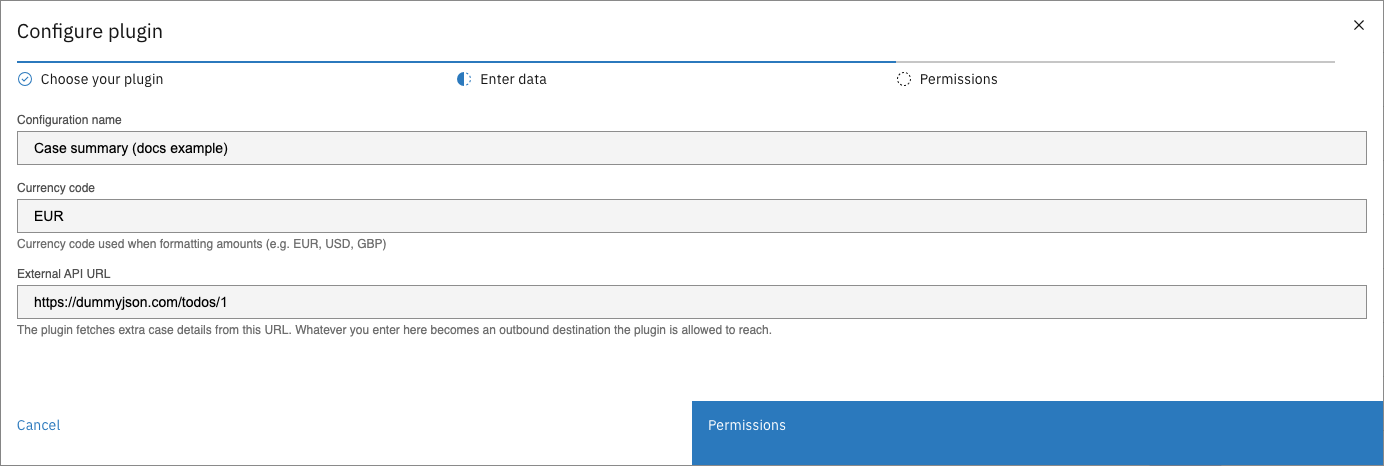
In **Enter data**, name the configuration and fill in the plugin's settings
When the plugin ships its own settings screen, this step shows it, so the plugin can explain and validate its own fields. A plugin without one gets a generic form instead: a configuration name plus the settings as JSON — see [Plugins without a settings form](#plugins-without-a-settings-form).
Enter data
{% endstep %}
{% step %}
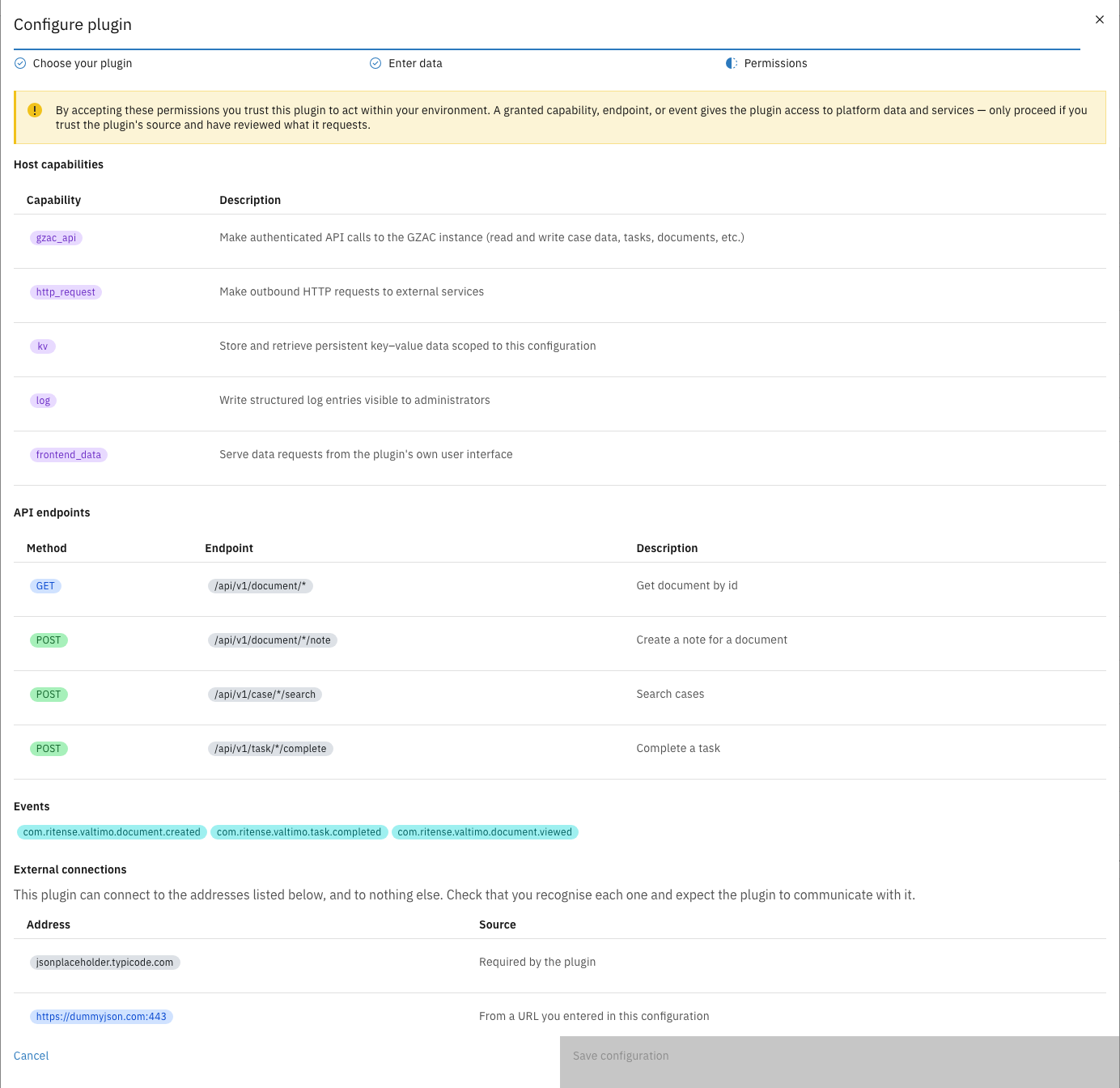
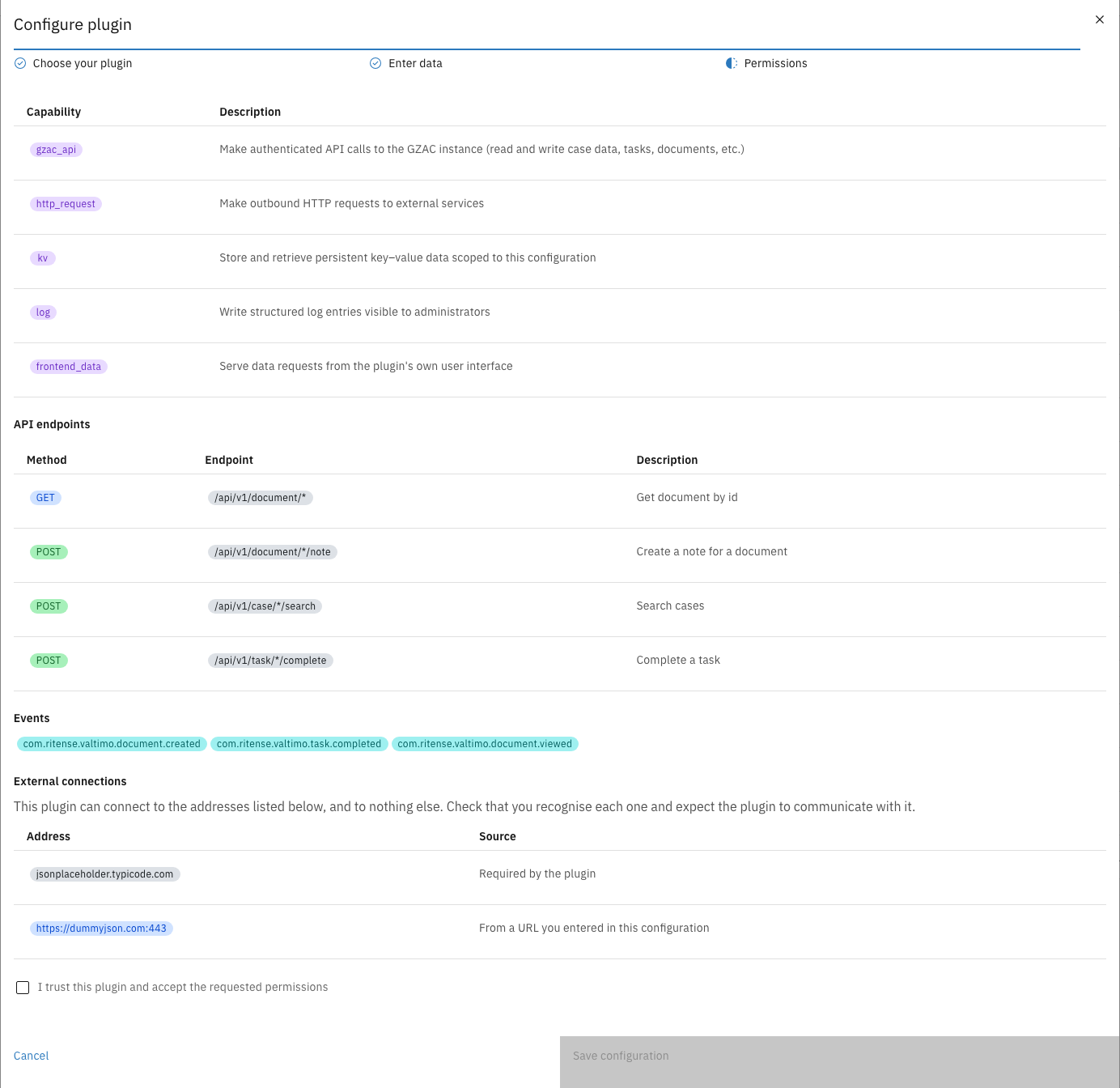
In **Permissions**, review everything the plugin requests, tick **I trust this plugin and accept the requested permissions**, and click **Save configuration**
Permissions
Acceptance checkbox
{% endstep %}
{% endstepper %}
***
## Plugins without a settings form
When a plugin provides no settings screen of its own, the **Enter data** step shows a **Properties (JSON)** text area, and the settings must be entered as a JSON object.
Properties as JSON
Valtimo validates what you type against the plugin's own schema when you save, so an incorrect property name or type is reported rather than silently accepted. It cannot tell you what the properties *are*, however — that comes from the plugin's supplier.
{% hint style="info" %}
Ask the supplier for the property names, their types, and an example. A plugin intended for functional administrators should ship a settings form; if one does not, that is worth raising with the supplier rather than working around permanently.
{% endhint %}
The same applies to an action's inputs in the process modeler — see [External plugins in cases and processes](/configuration-guides/plugins/external-plugins/external-plugins-in-cases-and-processes.md#process-actions).
***
## Reviewing permissions
The permissions step is the security decision of the whole flow: everything listed becomes available to the plugin, and nothing else ever is. It shows up to four sections:
| Section | Meaning |
| ------------------------ | --------------------------------------------------------------------------------------------------------------------------------------------------------------------------------------------------------------------------------------- |
| **Host capabilities** | Broad abilities, such as calling the Valtimo API (`gzac_api`), making outbound HTTP requests (`http_request`), storing key–value data (`kv`), writing logs (`log`), and serving data to its own screens (`frontend_data`). |
| **API endpoints** | Exactly which Valtimo API endpoints the plugin may call, with a description of each. This list bounds everything the plugin can read or change in Valtimo. |
| **Events** | The platform events the plugin will receive. |
| **External connections** | The outside addresses the plugin can connect to — and nothing else. Addresses come from the plugin package itself ("Required by the plugin") or from a URL entered in this configuration's settings. Check that you recognize each one. |
{% hint style="warning" %}
Accepting is all-or-nothing and must match what the plugin declares — the request list cannot be edited. If a plugin asks for more than it should need, do not activate it; contact the plugin's supplier.
{% endhint %}
{% hint style="info" %}
Accepted permissions are enforced at runtime on every call, not just checked at activation. A new plugin version that requests more permissions does not receive them until an administrator reviews and accepts again.
{% endhint %}
***
## Editing a configuration
{% stepper %}
{% step %}
On the **Plugins** page, open the row menu (⋮) of the configuration and click **Edit**
{% endstep %}
{% step %}
Change the name or the plugin's settings
Edit configuration
{% endstep %}
{% step %}
Review the **Permissions** step (shown read-only) and save
{% endstep %}
{% endstepper %}
Editing changes the name and settings only — the accepted permissions cannot be widened or narrowed through the edit flow. Secret values are never shown when editing; leaving a secret field untouched keeps the stored value.
Deleting a configuration is covered in [Manage an integration](/configuration-guides/plugins/external-plugins/manage-an-integration.md#deleting-configurations-and-integrations).