> For the complete documentation index, see [llms.txt](https://docs.valtimo.nl/llms.txt). Markdown versions of documentation pages are available by appending `.md` to page URLs; this page is available as [Markdown](https://docs.valtimo.nl/configuration-guides/cases/case-list/search-fields.md).
# Search fields
Search fields allow end users to filter the case list by specific data fields. Each search field can be configured with a data type, match behavior, and field type to control how users interact with the filter.
***
## Configuring search fields
{% stepper %}
{% step %}
Expand **Admin** in the left sidebar
{% endstep %}
{% step %}
Click **Cases** under the Configuration section
{% endstep %}
{% step %}
Click a case definition to open it
{% endstep %}
{% step %}
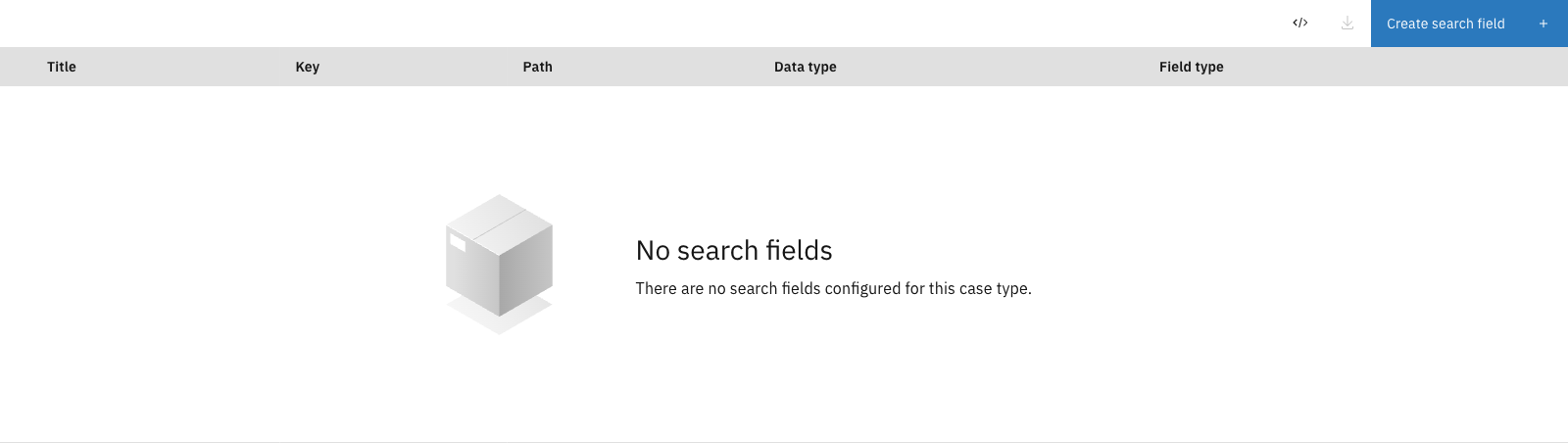
Click the **Case list** tab, then the **Search fields** sub-tab
Search fields configuration
{% endstep %}
{% endstepper %}
The list shows all configured search fields with their key, path, data type, and field type. Drag the handle on the left of each row to reorder fields.
### Creating a search field
{% stepper %}
{% step %}
Click the **Create search field** button
{% endstep %}
{% step %}
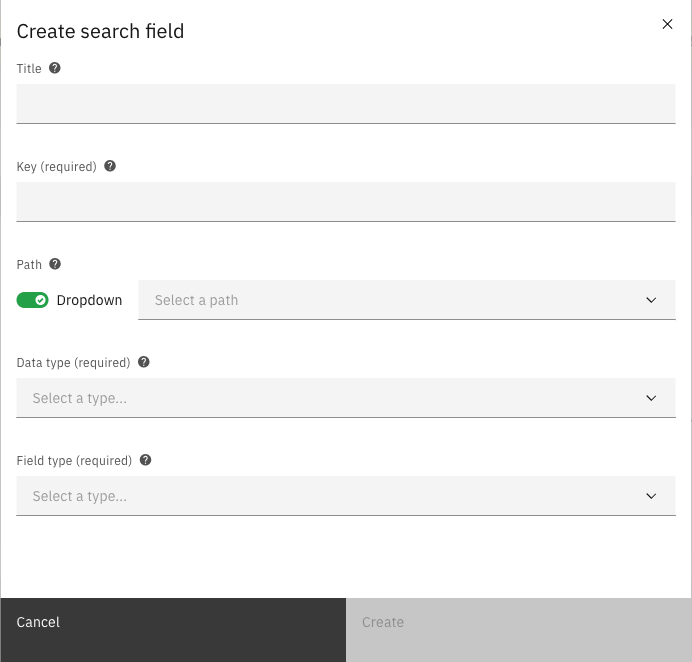
Fill in the search field properties
Create search field modal
{% endstep %}
{% step %}
Select a path from the dropdown to specify which data field to search
{% endstep %}
{% step %}
Select a data type
Data type options
{% endstep %}
{% step %}
Select a field type
Field type options
{% endstep %}
{% step %}
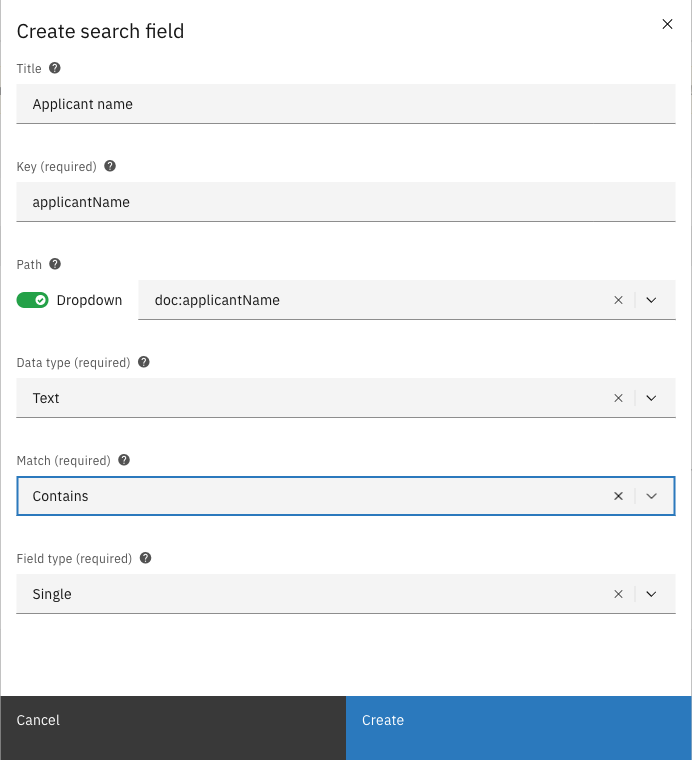
Configure additional options based on the data type (e.g., match type for text fields)
Filled search field form
{% endstep %}
{% step %}
Click **Create** to add the search field
{% endstep %}
{% endstepper %}
#### Search field properties
| Property | Description |
| ---------------------- | ------------------------------------------------------ |
| Title | Display name for the search field |
| Key | Unique identifier for the search field |
| Path | Path to the searchable data value |
| Data type | The type of data being searched |
| Match | How search values are matched (text fields only) |
| Field type | How the search input is presented to users |
| Dropdown data provider | Source of dropdown options (dropdown field types only) |
#### Data types
| Type | Description |
| ------------- | ------------------------------- |
| Text | Text/string values |
| Number | Numeric values |
| Date | Date values (without time) |
| Date and time | Date values with time component |
| Yes / no | Boolean values |
#### Field types
| Type | Description |
| ---------------------- | ------------------------------------- |
| Single | Single value text input |
| Range | Two inputs for from/to values |
| Single select dropdown | Dropdown with single selection |
| Multi select dropdown | Dropdown allowing multiple selections |
#### Match types (text fields only)
| Type | Description |
| -------- | ---------------------------------- |
| Exact | Value must match exactly |
| Contains | Value must contain the search term |
#### Dropdown data providers
When using dropdown field types, you can configure where the dropdown options come from:
| Provider | Description |
| --------- | ----------------------------------------------------- |
| Database | Fixed values stored in the database |
| JSON file | Values loaded from a configuration file on the server |
### Editing a search field
Click a search field row to open the edit modal. Modify the properties and click **Save** to apply changes.
### Deleting a search field
Click the overflow menu (three dots) on the right side of a search field row and select **Delete**.
### Reordering search fields
Drag the handle on the left side of each row to change the field order. The order in the configuration list matches the order in the end-user search panel.
***
## JSON editor
Click the **JSON editor** button to view and edit the search field configuration as JSON.
***
## Exporting configuration
Click the download button to export the current search field configuration as a JSON file.
***
## Access control
Access to search fields can be configured through access control. More information about access control can be found [here](/configuration-guides/access-control.md).
### Resources and actions
| Resource type | Action | Effect |
| ---------------------------------------------------------- | ----------- | ---------------------------------------------------------- |
| `com.ritense.document.domain.impl.searchfield.SearchField` | `view_list` | Allows viewing search fields in the case list filter panel |
Permission to view search fields
```json
{
"resourceType": "com.ritense.document.domain.impl.searchfield.SearchField",
"action": "view_list",
"conditions": []
}
```