> For the complete documentation index, see [llms.txt](https://docs.valtimo.nl/llms.txt). Markdown versions of documentation pages are available by appending `.md` to page URLs; this page is available as [Markdown](https://docs.valtimo.nl/configuration-guides/cases/case-list/list-columns.md).
# List columns
List columns determine which data fields are visible in the end-user case list for a specific case type. Each column displays a value from the case document, case metadata, or linked zaak data, and can be configured with sorting and display options.
***
## Configuring list columns
{% stepper %}
{% step %}
Expand **Admin** in the left sidebar
{% endstep %}
{% step %}
Click **Cases** under the Configuration section
{% endstep %}
{% step %}
Click a case definition to open it
{% endstep %}
{% step %}
Click the **Case list** tab, then the **List columns** sub-tab
List columns configuration
{% endstep %}
{% endstepper %}
The list shows all configured columns with their key, path, display type, and sorting options. Drag the handle on the left of each row to reorder columns.
### Creating a column
{% stepper %}
{% step %}
Click the **Create column** button
{% endstep %}
{% step %}
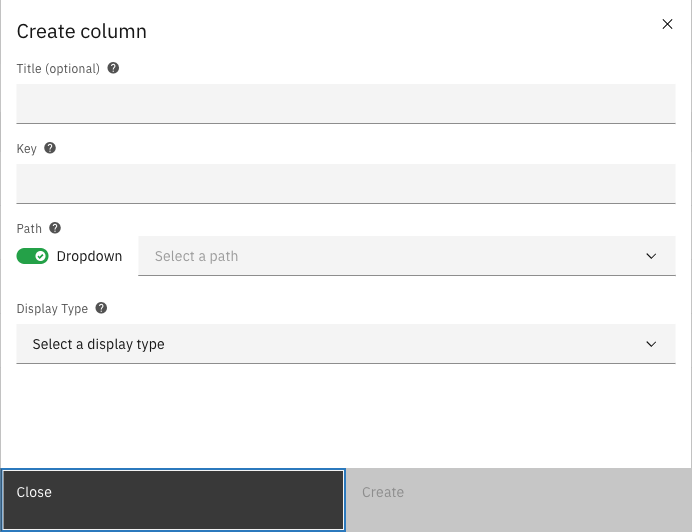
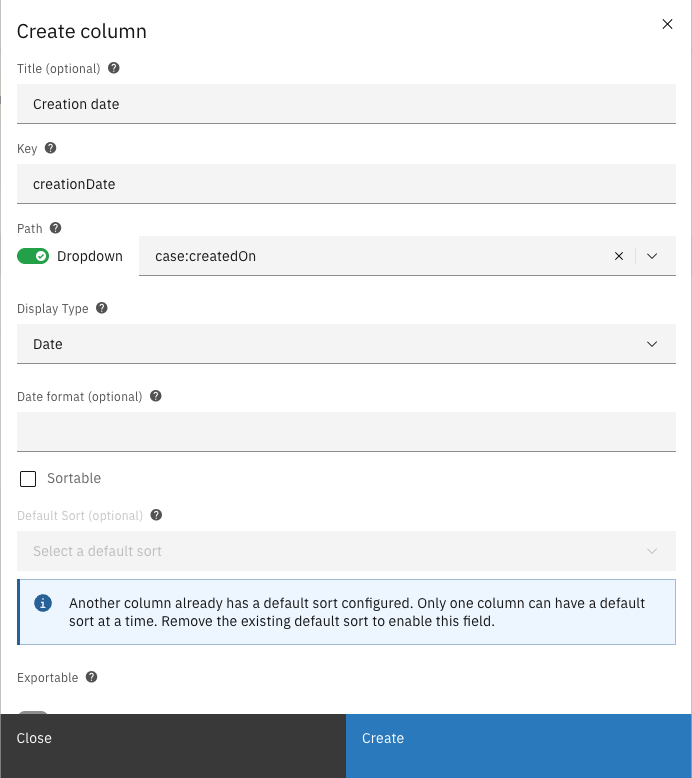
Fill in the column properties
Create column modal
{% endstep %}
{% step %}
Select a path from the dropdown to specify which data field to display
{% endstep %}
{% step %}
Select a display type
{% endstep %}
{% step %}
Click **Create** to add the column
{% endstep %}
{% endstepper %}
#### Column properties
| Property | Description |
| ------------ | ---------------------------------------------------------------------------------------- |
| Title | Optional display name for the column header. If not set, the key is used. |
| Key | Unique identifier for the column |
| Path | Path to the data value (e.g., `doc:applicantName`, `case:createdOn`) |
| Display type | How the value is rendered in the list |
| Sortable | Whether users can sort the list by this column |
| Default sort | The default sort direction when the list loads (only one column can have a default sort) |
| Exportable | Whether the column is included when exporting the case list |
#### Display types
| Type | Description | Additional parameters |
| --------------------- | -------------------------------- | ------------------------------------------ |
| Text | Plain text display | None |
| Date | Formatted date | Date format (optional, e.g., `DD-MM-YYYY`) |
| Yes/no | Boolean display as Yes or No | None |
| Enumeration | Maps values to display labels | Key-value pairs for mapping |
| Count | Shows the count of array items | None |
| Underscores to spaces | Replaces underscores with spaces | None |
| Tags | Displays values as tags | Tag amount (how many tags to show) |
#### Path prefixes
| Prefix | Description | Example |
| ------- | --------------------------- | ----------------------------------------- |
| `doc:` | Document (JSON) data fields | `doc:applicantName` |
| `case:` | Case metadata fields | `case:createdOn`, `case:assigneeFullName` |
| `zaak:` | Linked zaak data (ZGW) | `zaak:identificatie` |
### Editing a column
Click a column row to open the edit modal. Modify the properties and click **Save** to apply changes.
### Deleting a column
Click the overflow menu (three dots) on the right side of a column row and select **Delete**.
### Reordering columns
Drag the handle on the left side of each row to change the column order. The order in the configuration list matches the order in the end-user case list.
***
## JSON editor
Click the **JSON editor** button to view and edit the column configuration as JSON. This is useful for bulk changes or copying configurations between case types.
***
## Exporting configuration
Click the download button to export the current column configuration as a JSON file.