> For the complete documentation index, see [llms.txt](https://docs.valtimo.nl/llms.txt). Markdown versions of documentation pages are available by appending `.md` to page URLs; this page is available as [Markdown](https://docs.valtimo.nl/configuration-guides/access-control/permissions.md).
# Permissions
Permissions define what actions a role can perform on specific resources. Each permission consists of a resource type, one or more actions, and optional conditions that further restrict access.
***
## Accessing the permission editor
{% stepper %}
{% step %}
Navigate to **Admin** in the sidebar
{% endstep %}
{% step %}
Click **Access Control**
{% endstep %}
{% step %}
Click on a role to open its editor
{% endstep %}
{% endstepper %}
The editor has three tabs:
* **Editor** — Visual interface for managing permissions
* **Summary** — Read-only overview of all permissions
* **JSON editor** — Direct JSON editing for advanced users
***
## Visual editor
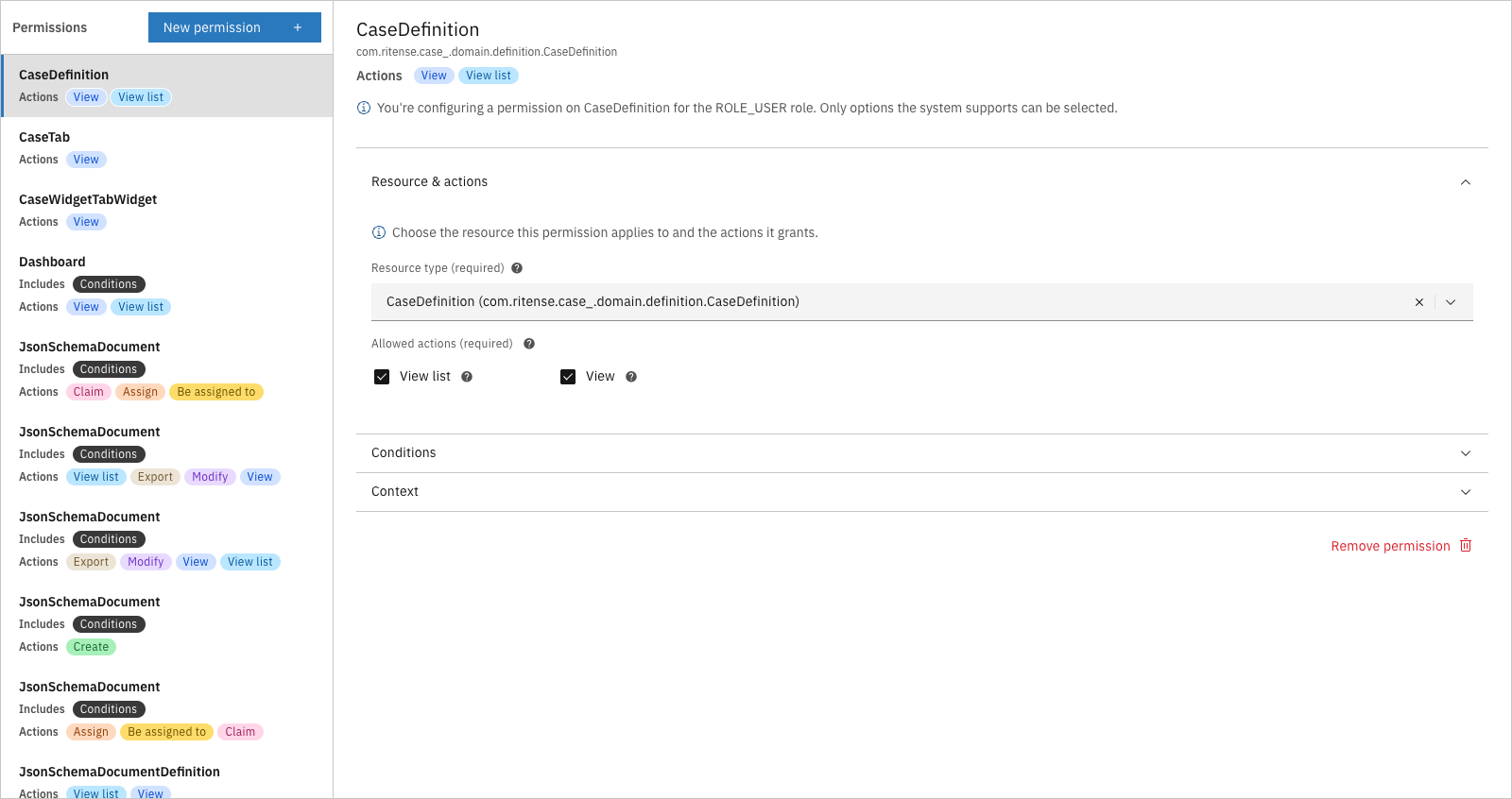
The visual editor displays permissions in a sidebar on the left and a detail panel on the right.
Permission editor
Each permission in the sidebar shows:
* **Resource name** — The short name of the resource type (e.g., "Dashboard")
* **Actions** — Colored tags indicating which actions are granted
* **Indicators** — Tags showing if the permission has conditions or context restrictions
***
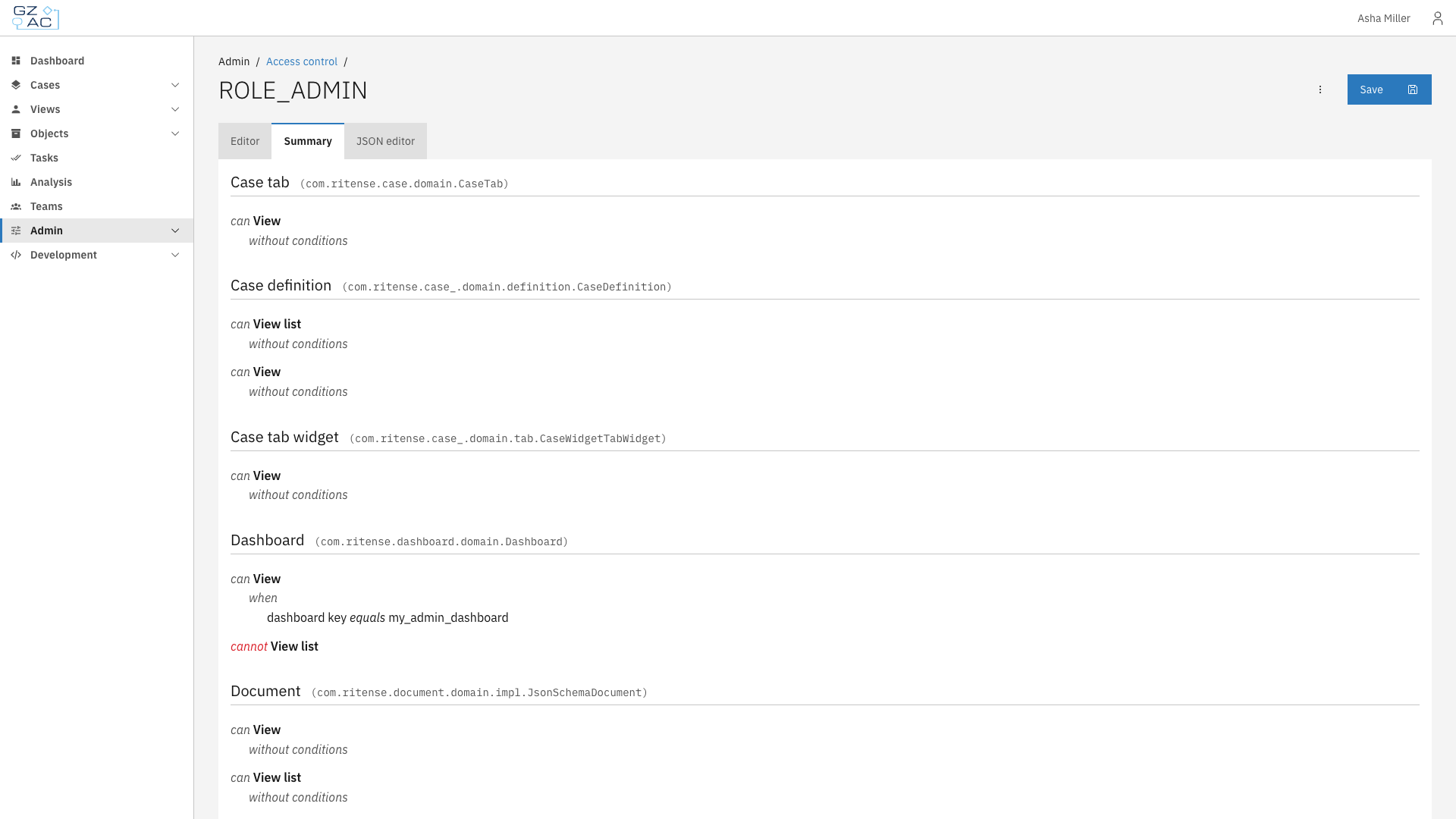
## Summary tab
The Summary tab provides a read-only overview of all permissions for the role. Each resource type is listed with its allowed actions and any conditions that apply.
Summary tab
Permissions are displayed in natural language format:
* **can \[action]** — The role is granted this action
* **cannot \[action]** — The role is explicitly denied this action
* **without conditions** — The permission applies unconditionally
* **when \[condition]** — The permission is restricted by the specified condition
Clicking on a resource type or action navigates to the JSON editor filtered to that specific permission.
***
## Adding a permission
{% stepper %}
{% step %}
Click **New permission** in the sidebar
{% endstep %}
{% step %}
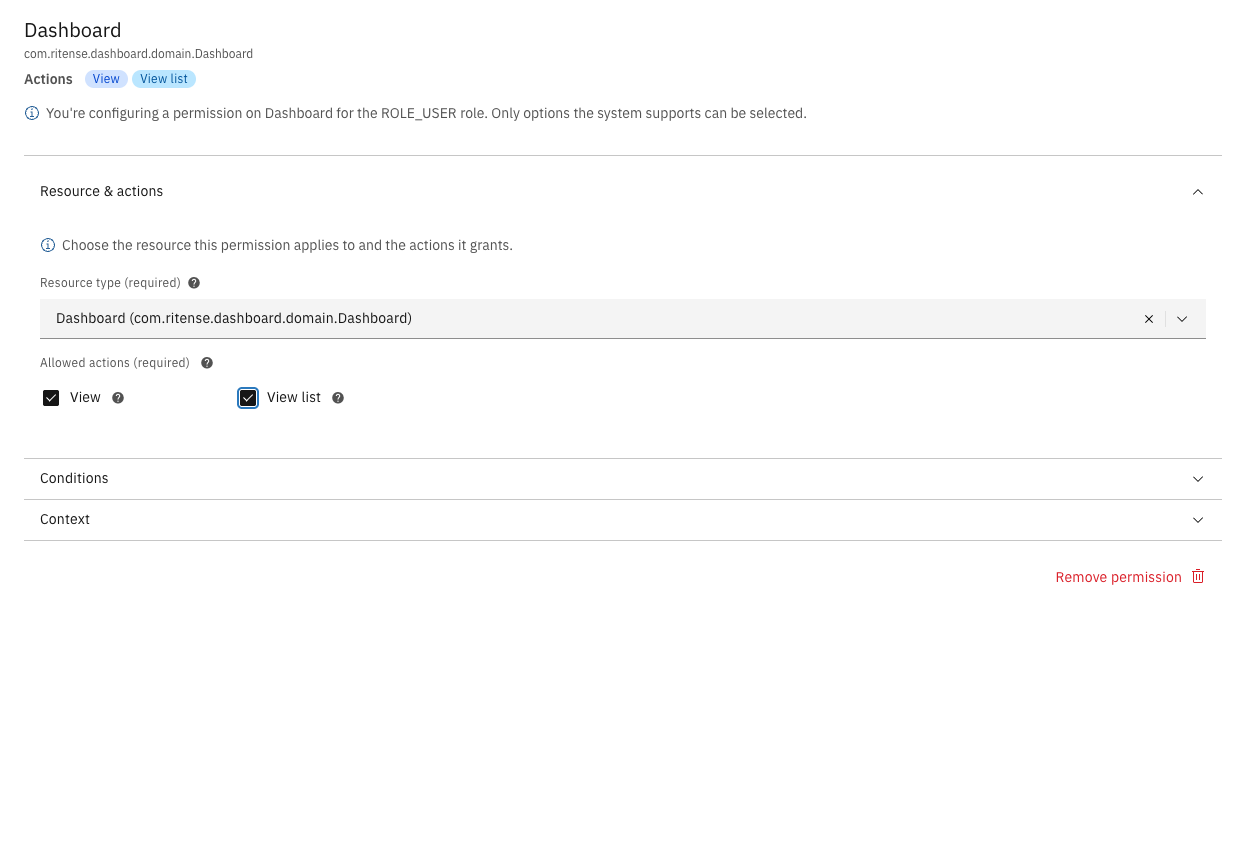
Select a **Resource type** from the dropdown
{% endstep %}
{% step %}
Check the **Allowed actions** you want to grant
Configured permission
{% endstep %}
{% step %}
Optionally, expand **Conditions** or **Context** to add restrictions (see [Conditions](/configuration-guides/access-control/conditions.md) and [Context conditions](/configuration-guides/access-control/context-conditions.md))
{% endstep %}
{% step %}
Click **Save** in the page header
{% endstep %}
{% endstepper %}
***
## Editing a permission
{% stepper %}
{% step %}
Click on the permission in the sidebar
{% endstep %}
{% step %}
Modify the resource type, actions, conditions, or context as needed
{% endstep %}
{% step %}
Click **Save**
{% endstep %}
{% endstepper %}
***
## Removing a permission
{% stepper %}
{% step %}
Click on the permission in the sidebar
{% endstep %}
{% step %}
Click **Remove permission** at the bottom of the detail panel
{% endstep %}
{% step %}
Confirm the removal
{% endstep %}
{% step %}
Click **Save** to persist the change
{% endstep %}
{% endstepper %}
{% hint style="info" %}
Changes are not persisted until you click **Save**. You can undo removals by navigating away without saving.
{% endhint %}
***
## JSON editor
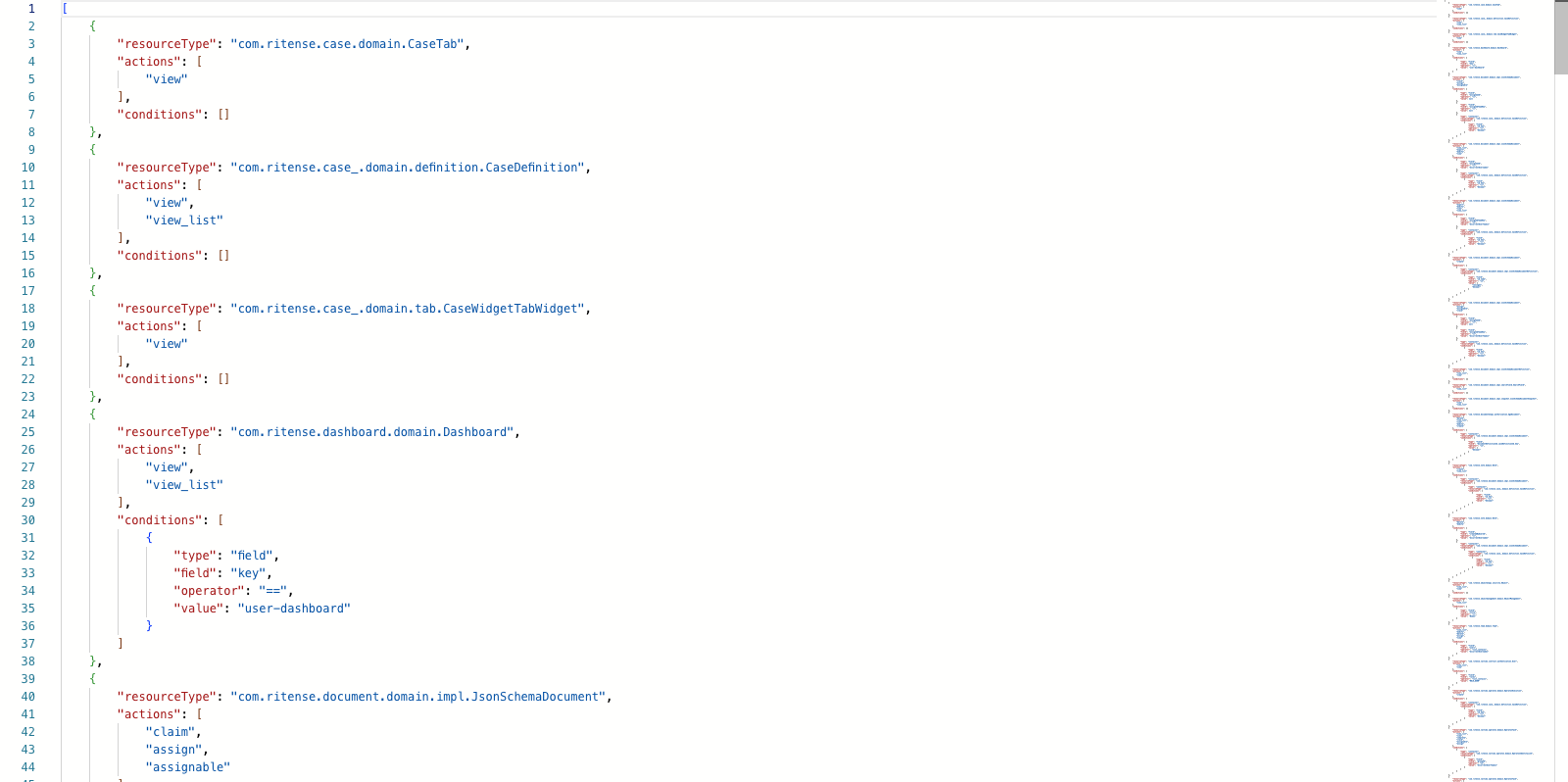
For advanced users or bulk editing, the JSON editor provides direct access to the raw permission configuration.
JSON editor
The JSON format is an array of permission objects:
```json
{
"resourceType": "com.ritense.dashboard.domain.Dashboard",
"actions": ["view", "view_list"],
"conditions": []
}
```
| Property | Description |
| -------------- | ------------------------------------------------------------------------------------------------- |
| `resourceType` | Fully qualified class name of the resource |
| `actions` | Array of action keys (e.g., `view`, `create`, `modify`, `delete`) |
| `conditions` | Array of condition objects (see [Conditions](/configuration-guides/access-control/conditions.md)) |
{% hint style="warning" %}
Invalid JSON will prevent saving. The editor validates the structure before allowing you to save.
{% endhint %}